Begin with a measurement map, not the tag
Before installing GA4, write down which decisions the data should support. A service website may need brief visits, form starts, successful submissions and contact-channel clicks.
Not every click is a conversion. An event needs a clear condition and should represent a real user step. Its name should remain stable even if the button copy changes.
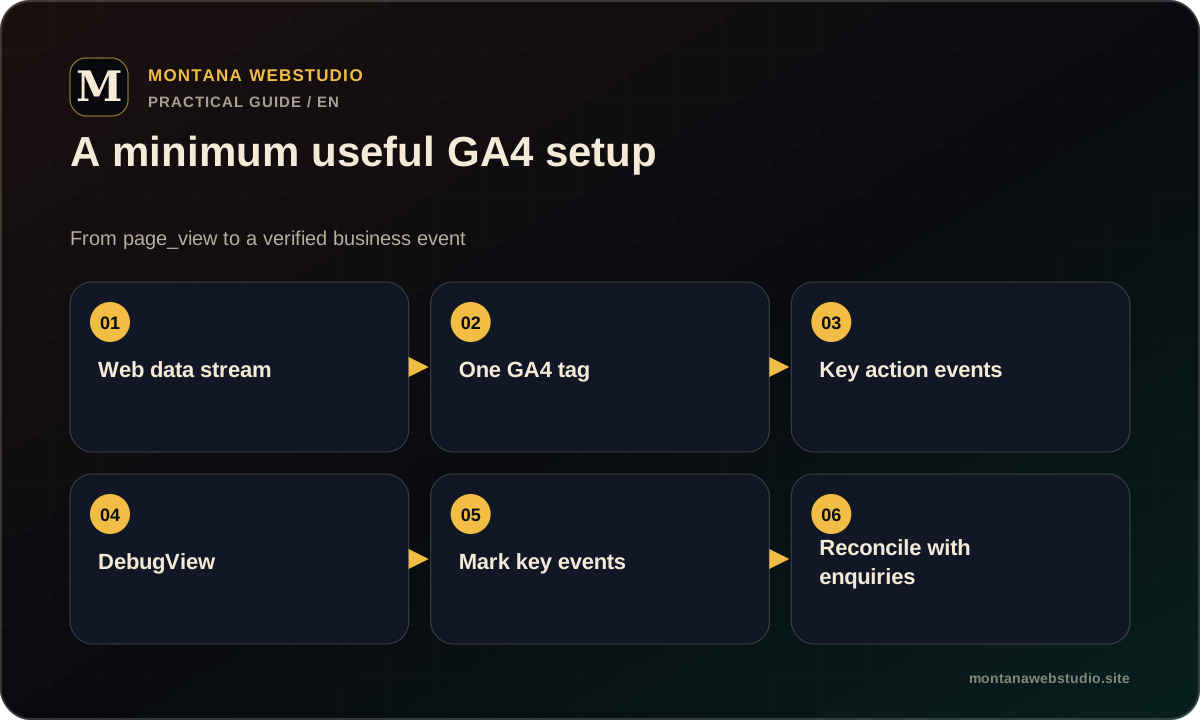
One data stream and one base tag
Create a Web data stream for the canonical domain and install its Measurement ID once in the shared template. When direct gtag and Google Tag Manager are both present, check that they do not create duplicate page_view events.
After deployment, inspect Network and use Tag Assistant or DebugView. Moving between UA and EN pages should not create separate configurations for the same site without a deliberate business reason.
- Verify the Measurement ID.
- Find every tag-loading location.
- Exclude duplicate page_view events.
- Record the property time zone and currency.
Montana WebStudio events as a real example
The site separates intent to contact from actual form interaction. hero_primary_cta_click describes the main CTA click, while lead_form_start marks the beginning of the brief form.
Portfolio and Google Reviews clicks help explain a trust journey, but they should not automatically count as enquiries. They remain supporting interactions in reporting.
| Event | Meaning |
|---|---|
| hero_primary_cta_click | Visit from the main CTA |
| lead_form_start | User starts the brief form |
| hero_portfolio_click | Visit to project work |
| google_reviews_click | Visit to external reviews |
Verify events in DebugView
Enable debug mode only for the test browser and complete one journey from page entry to the target action. Inspect the event name, parameters, count and sequence.
Repeat on mobile, on UA/EN versions and after rejecting optional cookies when consent changes analytics behaviour. An error-free console does not prove data correctness; the event itself must arrive once.
- Open DebugView.
- Clear old test activity.
- Complete one journey.
- Inspect parameters and duplicates.
- Repeat after production deployment.
Consent and privacy
Analytics should follow the chosen consent model. The message must not promise behaviour the site does not implement, and rejection should not block primary content.
Do not send names, phone numbers, email addresses or free-form enquiry text to GA4. Technical event parameters are sufficient for measurement.
Reconcile events with actual enquiries
A correctly delivered event does not prove lead quality. Monthly, compare successful-form events with actual Telegram or CRM messages while accounting for spam and duplicates.
When advertising optimises towards a conversion, use the event closest to a useful enquiry as the primary signal. A button click without submission confirmation is better kept as a supporting event.
Frequently asked questions
Should every click be tracked?
No. Track actions that support a decision: form start and completion, a contact step or an important purchase stage.
How can a duplicate GA4 tag be found?
Inspect source code, Tag Assistant, Network and the number of page_view events in DebugView after one page load.
Can an email address be sent as an event parameter?
No. Do not send personal data such as email, phone, names or enquiry text to GA4.